The quote page, part by part
What each part of the quote page does, from top to bottom, and the difference between a multi-store order and a group order by branch.
For: Seller and AdministratorUpdated on 2026-10-21
Summary
The quote page is a stack, from top to bottom: the header with the actions, the store, the summary, the review, the customer, the seller, the general discounts, the items, the totals and the conditions. Every change to the order is made here, and the Confirm estimate button, at the top, is what closes it. An order from more than one supplier store becomes a purchase, with one quote per store. An order from a customer with several branches stays a single quote, split among the destinations.
Where to find it
In Quotes, click a quote in the list. The link Dri sends on WhatsApp opens the same page. The screenshots below use fictional data, and the numbers mark each part.
The top: number, actions, store, summary and customer
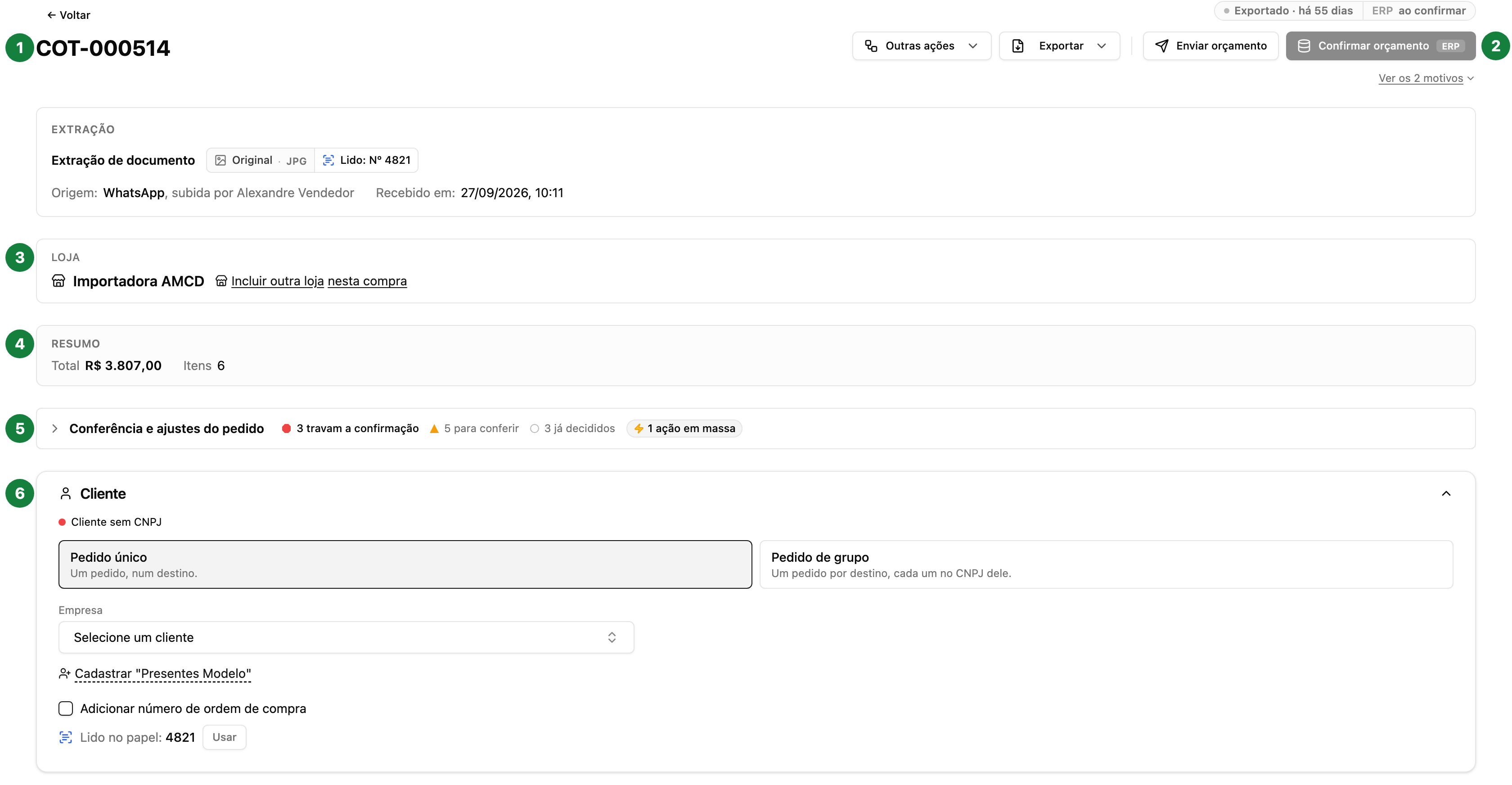
1. Number and source. The quote number (COT-…) and, below it, where it came from and when, for a quote built on screen. When it came from something the customer sent (photo, spreadsheet, PDF, text or audio), the source and the date leave the header and move to the Extraction block, the first on the page: it says what was extracted (Document extraction, de texto or de áudio), shows the badge of the original with what Vendria read from it, the Source: (for example WhatsApp, with who sent it) and the Received on:. See Conferir a cotação contra o documento que o cliente mandou. The status sits in the top right corner (Draft, for example). See O ciclo de vida de uma cotação: os status e o que liga um no outro.
2. The actions. Confirm estimate is the main button: it closes the quote and, when the store is integrated, sends the order to the ERP. Export downloads the quote as PDF, Excel or CSV, with the templates the company set up (see Baixar a cotação em PDF, Excel ou CSV: o menu Exportar e os modelos). Once the quote becomes an order in the ERP, the page gets tabs and the button changes name and place: on the Original quote tab it is Export quote, and on an order's tab its copy comes from Download order copy (PDF), in the actions of the order header — see O pedido como ele ficou no ERP. Enviar orçamento, to the left of Confirmar orçamento, freezes the proposal and generates the PDF for the customer to approve (see Enviar orçamento: congelar e entregar o PDF ao cliente). With the proposal already with the customer, Send estimate stays there, to reopen the delivery options for the version the customer has. There is no button to reopen editing: whoever can edit the quote clicks what they want to change, and a notice asks once whether it goes back to editing, because the sent proposal stops being valid (see Editar uma proposta enviada: reabrir, revisar e reenviar). Other actions opens the menu with the rest:
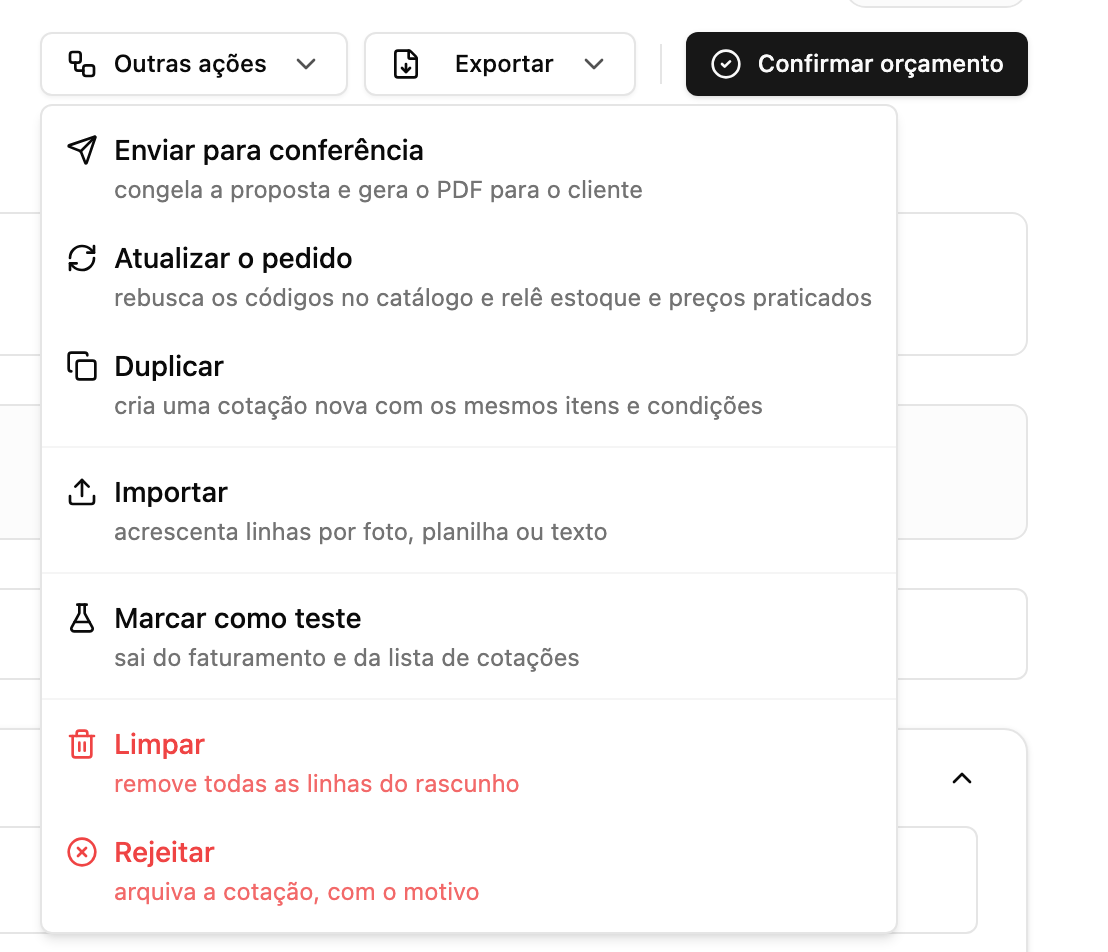
The main button, the black one, changes with the situation:
- Confirm estimate: closes the order. When the store writes to the ERP, it carries the ERP badge and opens a confirmation before sending;
- Customer confirmed: appears when the proposal was sent with Enviar orçamento and you are going to record that the customer accepted.
The Other actions menu has the rest. Not every item always appears:
| Action | What it does | Who sees it, and when |
|---|---|---|
| Refresh the order | Looks up the codes again and rereads stock and last paid prices | Before confirmation, with the quote editable |
| Duplicate | Creates a new quote with the same items and conditions | In any status |
| Import | Adds lines from a photo, spreadsheet or text | With the draft open for editing |
| Clear | Removes all lines | With the draft open and with lines |
| Mark as test | Takes the quote out of billing, statistics and the quote list | Administrator only |
| Confirm anyway | Confirms despite a block, such as the minimum order, and it is logged | Administrator only, when confirmation is blocked |
| Reject | Archives the quote, with the reason | Before confirmation |
| Cancel order | Cancels the confirmed sale, with the reason | After confirmation, in place of Reject |
The screenshot is of a draft. See Cancelar um pedido ou rejeitar uma cotação.
3. Store. The supplier store selling this quote. The Incluir outra loja nesta compra link adds a second store, and the quote becomes part of a multi-store purchase (see the last section).
4. Summary. The total and the number of items, always in view.
5. Order review and adjustments. The strip counts what is left to review, what has already been decided and how many bulk actions exist. Open, it gathers what can be fixed in one go; what belongs to a single line stays on the line. The panel actions are explained in the section O painel de conferência, ação por ação, further down.
6. Customer. Who the order is for. One destination is one order to one destination; Purchase group splits the order among the customer's destinations (see the last section). Company holds the chosen customer, with legal name and CNPJ, and that is also where you add the customer's purchase order number. See O cliente da cotação: identificar, definir e trocar.
The middle: seller, discounts and items
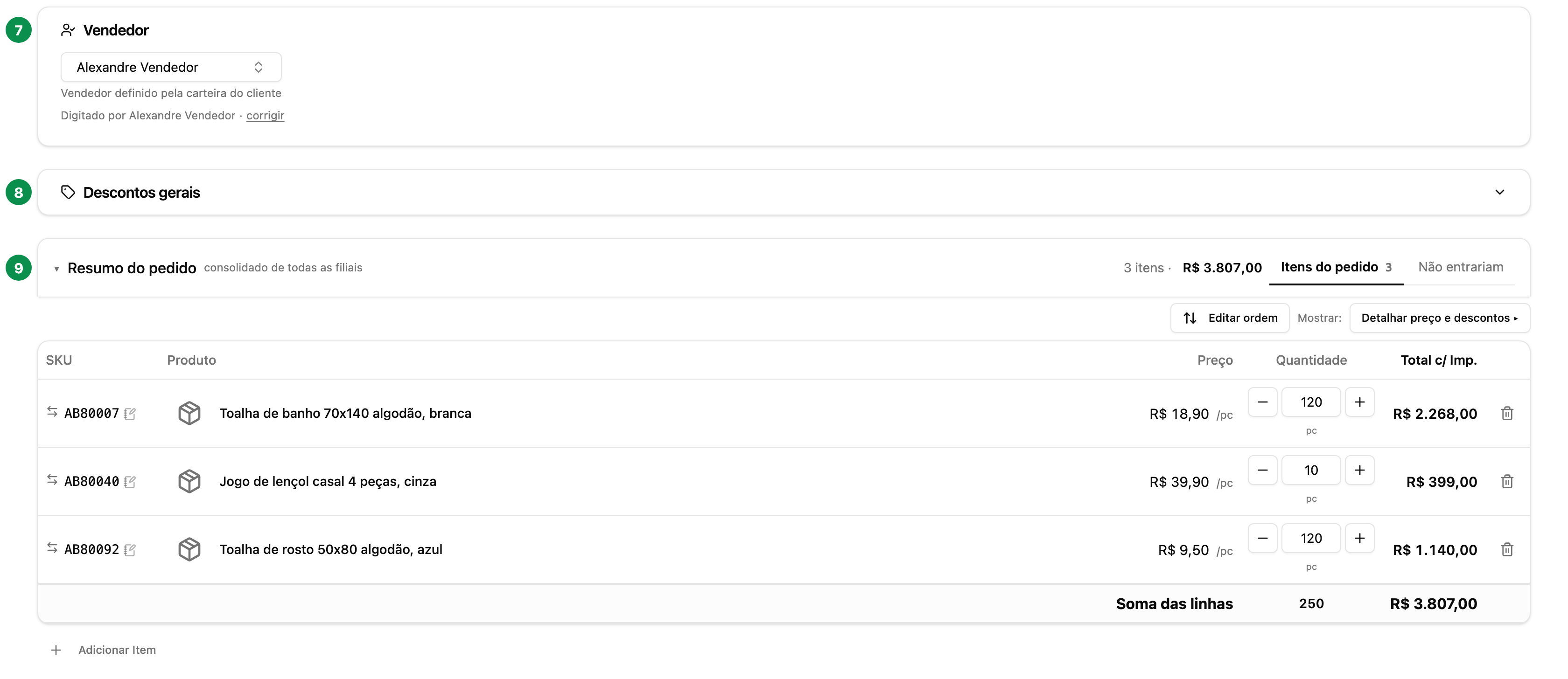
7. Seller. Who sells the quote. It usually comes from the customer's portfolio, and the line below says who typed it. See Trocar o vendedor de uma cotação ou de uma compra.
8. General discounts. The discount that applies to the whole quote, such as Manual discount (%). A discount on a single line is given on the line itself.
9. Items. The order table. Above it:
- Order items and Future demand: the second tab keeps what was left out of the order, with the count in the tab name;
- Reorder changes the order of the lines;
- Show price and discounts opens the discount, packaging and tax columns. Closed, the table shows only code, product, price, quantity and total.
Each line has the code, the product, the price and the quantity in pieces. The ⇆ icon next to the code swaps the line's product. Add Item, at the end, searches the catalog for a product. See A linha da cotação: quantidade, preço e desconto.
The bottom: logistics, totals and conditions
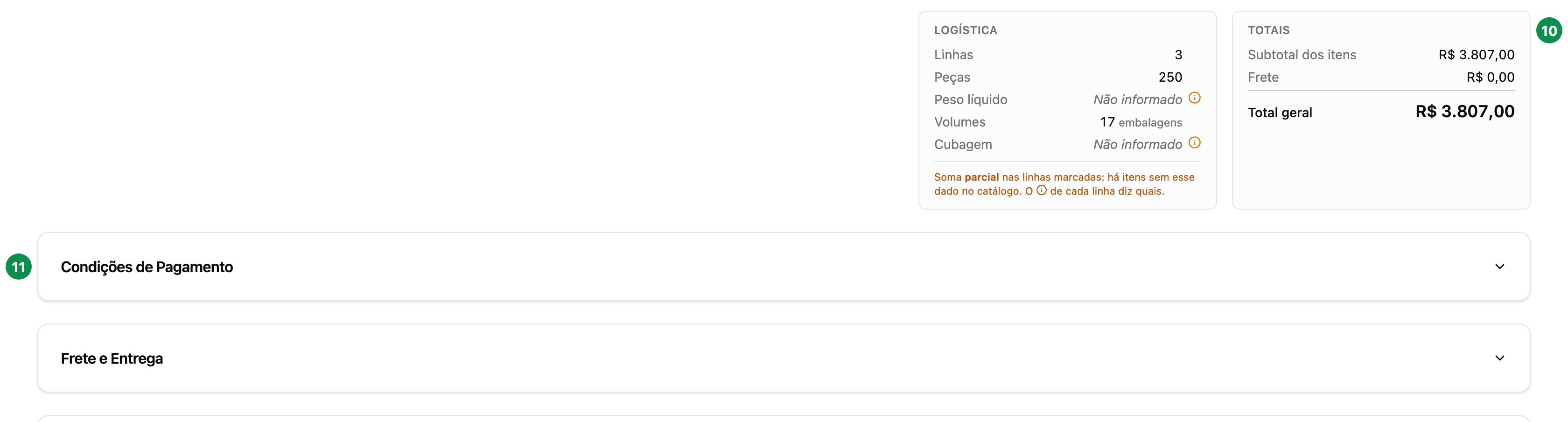
10. Logistics and totals. Lines, pieces, weight, volumes and cubage, summed from the product records. When a product is missing the data, the box warns that the sum is partial. Next to it, the items subtotal, the freight and the grand total.
11. Conditions. Payment Terms, Freight and Delivery and Notes expand and collapse. See Condições comerciais na cotação: pagamento, frete e entrega.
The quote rules
What Vendria checks, and what happens when a rule is not met.
The customer
- The seller only picks customers from their own portfolio. The customer list in the Customer box shows only the order seller's portfolio, and the server rejects others with "Customer outside your portfolio.". The administrator picks any customer; to see all of them in the list, they remove the seller in the Seller box. See Os clientes da minha carteira.
- In a store that writes to the ERP, no customer means no confirmation. The ERP would reject an order without a CNPJ, so Vendria rejects it first: "This order has no identified customer (CNPJ).". The customer also needs a CNPJ in their record. In a store without ERP, you can confirm without a customer.
- In a purchase with more than one store, the customer belongs to the purchase. The quote shows Set in the purchase and leads to the purchase page.
Confirming and the ERP
- Who confirms: the administrator and the order's seller. A rep agency seller may be blocked when the rep agency reserves sending to the ERP to the Partner and Admin staff; then the button is disabled and says who confirms.
- If the ERP fails, the confirmation still stands. The send result appears on the page, in the ERP strip, with the option to resend. See O pedido como ele ficou no ERP.
- What always blocks confirmation in a store with ERP: order without a customer, order without items, payment method not chosen and customer with an overdue receivable, when the company blocks that. In any store: the minimum order, when the company makes it mandatory.
- What only warns, and does not block: out of stock, code not found, open question, quantity outside the package multiple. The warning appears at confirmation; if you go ahead, the order goes as it is.
Price and discount
- The discount has a ceiling per store. Going over the seller's maximum discount, whether through the line discount or the closed price, is rejected with the limit written out. The quote's general discount respects the same ceiling. See Desconto máximo do vendedor: o teto de concessão por loja.
- The store may not let the seller type the price. Then the field rejects it with "This store does not allow the seller to set the line price.".
Stock and minimum order
- Lack of stock does not lock the order. Without a decision on the line, the full quantity ordered goes through. The options (use what is available, save for the future) are on the line. See Estoque na cotação: o aviso de falta e as saídas.
- Minimum order: below it, the quote warns. If the company made the minimum mandatory, the confirm button is blocked and only the administrator confirms anyway, in Confirm anyway. See Pedidos e estoque: aprovação, pedido mínimo, estoque e embalagem.
When the quote locks
- After Enviar orçamento, it freezes: the sent version does not change on its own while the customer decides. Whoever can edit the quote types the new quantity straight into the field, or clicks what they want to change, and confirms the notice in Edit estimate: it goes back to editing, and the proposal the customer has stops being valid. In an order allocated among branches the quantity stays as text, because it is the sum of the branches and is edited branch by branch. You can still record the acceptance, reject, duplicate and export. See De quem é a vez, e quando a cotação congela.
- After confirmation, the quote is no longer edited. What remains is cancel, duplicate and export.
The seller, the store and the test
- Changing the seller is for the administrator. In a rep agency, the Partner and Admin staff change it within their own team. The seller cannot change it. See Trocar o vendedor de uma cotação ou de uma compra.
- A quote belongs to one store only. Items from different stores become a purchase, with one quote per store (see the last section).
- Mark as test is administrator only.
You can also do it on WhatsApp
The quote open in the conversation with Dri accepts changes by message: "add 2 AB10008", "swap AB10371 for AB10372", "change the terms to 30/60". See Montar uma cotação por texto no WhatsApp and Mudar as condições do pedido pelo WhatsApp.
The review panel, action by action
The Order review and adjustments panel groups what can be solved in one go. Each panel row is a type of issue, with the count and the bulk actions. The actions only work with the quote editable.
| In the panel | Action | What it does |
|---|---|---|
| Line prices | Negotiated as base or Negotiated as final price | Applies the price the customer wrote; List price returns the lines to the table |
| Line prices | Replace, with the last paid price | Applies the last price the customer paid |
| Line prices | Restore | Returns to the table price; does not touch a closed price typed by hand |
| Availability | Mandar só o que tem em estoque (N) | Reduces the lines to what is available; the difference is noted in Future demand and can come back |
| Availability | Mandar só o que tem em estoque, sem a pré-venda (N) | Reduces the lines to what is on the shelf, without pre-sale, and removes those with nothing; what is missing goes to Future demand (a removed line does not come back) |
| Product not found | Save for future and keep in order | Records the demand without removing the line |
| Product not found | Remove from order | Removes the lines |
| Belong to another store | Discard | Removes the lines from another store, with confirmation |
| Quantities in pieces | Convert to boxes | Converts using the catalog box size |
| Quantities in boxes | Convert to pieces | Undoes the conversion |
| Mismatched packaging | Use the catalog packaging | Moves the lines from pieces to boxes using the registered packaging |
| Reading questions (two or more) | They're quantities / They're prices, In pieces / In boxes | Answers the same question for all lines of that type |
| Any warning | Dismiss | Removes the warning from this quote; nothing changes in the order |
Some panel rows only inform, with no button: Fora do múltiplo da embalagem, Abaixo do pedido mínimo da loja, Código duplicado and the stock count, with see in the table to go to the line. When the stock reading gets old, the panel asks for Refresh the order, in Other actions. See Avisos da linha: o selo Confira, a gaveta e o painel de conferência.
Multi-store or multi-branch: what is the difference
They are two different things, and both can appear for the same customer.
| Multi-store | Multi-branch (group order) | |
|---|---|---|
| What is split | The supplier stores that sell | The customer destinations that receive |
| Why | Each store issues the invoice with its own CNPJ | Each branch receives and is billed under its own CNPJ |
| How it starts | Items from different stores in the same order, or Incluir outra loja nesta compra | Purchase group in the Customer box, or a spreadsheet and photo with one column per destination |
| What appears | One quote per store, gathered into a purchase | A single quote, with the Grid and one card per destination |
| Where it is confirmed | Confirmar tudo, on the purchase page | Confirm estimate, on the quote itself |
Multi-store order: the purchase
When the items are from different stores, Dri builds one quote per store and joins them into a purchase. On WhatsApp she replies with each store's quotes and a single link, Veja a compra completa.
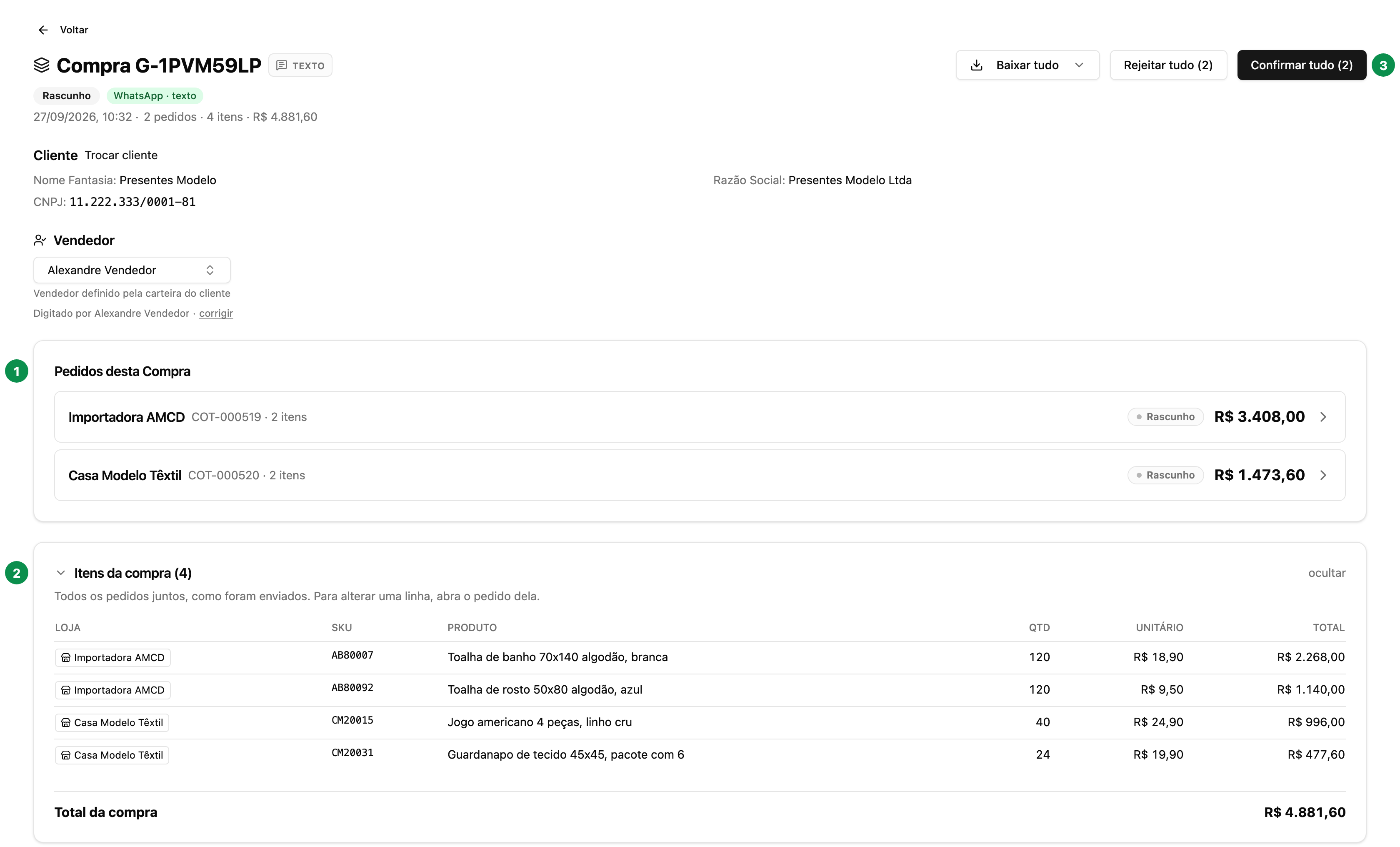
- Orders in this Purchase, the first box on the page: one line per store, with the number, the items, that order's pending issues, the status and the value. Click to open that store's quote; that is where you change the items and resolve the pending issues.
- Itens da compra: all items together, with each one's store, read only. The section starts closed; click the title to open it.
- Confirmar tudo and Rejeitar tudo act on all the purchase's quotes at once, and Download all downloads the files.
See Quando um pedido vira vários: a compra multi-loja pelo lado da casa and A página da compra: confirmar, rejeitar e incluir lojas de uma vez.
Group order: one order, several destinations
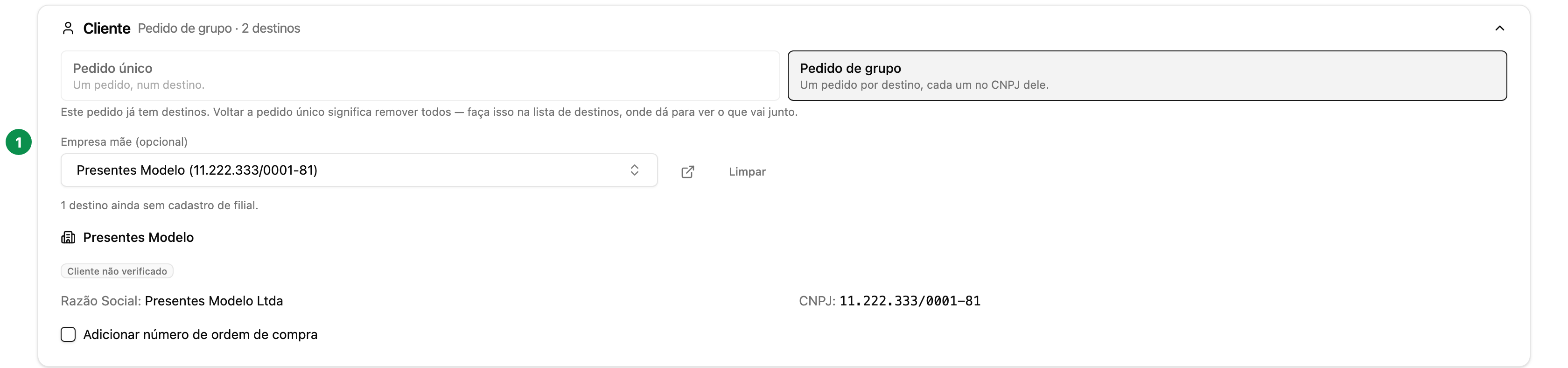
When the customer has branches and sends one order for all of them, the quote stays a single one, and each line is split among the destinations. In the Customer box, Purchase group shows the Empresa mãe (the head office, optional) and the destinations. Purchase group and Group order are the same mode: the cart and the editor call it by the first name; the quote list, the saved quote and the exported file, by the second. The image below is from before this name change, and still shows the buttons with the old name.
In the items, the Summary | Grid selector switches the view. In Grid, each destination is a column, and you type how much goes to each one; the line quantity is the sum of the columns. Units | Packages chooses whether the columns count pieces or boxes.
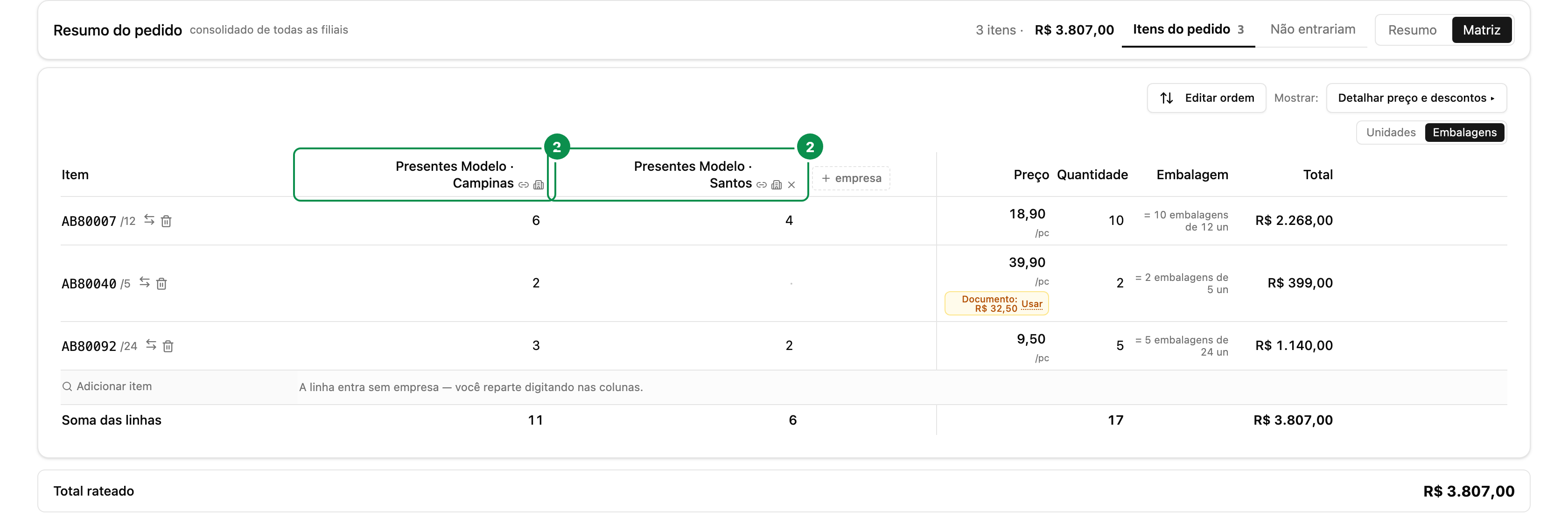
Below the totals, Allocation by store shows one card per destination, with the items and the value of each. Payment terms, freight and conditions belong to the order and apply to all destinations; what changes per destination is the CNPJ, the address and the delivery date. The ⋮ menu on each card changes the destination, duplicates, changes address and date or removes the branch from the order, and Add destination to order adds another.

The step by step for starting an allocation, adding destinations and filling in the Grid is in Allocation on screen, step by step: destinations, Grid and delivery by branch.