Order through Dri on WhatsApp
Send Dri the order with code, quantity and unit, see the quote on the site and learn how to send it to the seller for approval.
For: all rolesUpdated on 2026-10-08
Summary
For Dri to put together a quote, start the message with the word quote or order and put one item per line: the product code, the quantity with the unit (box or unit) and the agreed price, if there is one. Those who sell (seller or administrator) also say who it's for, with the customer's name or CNPJ; those who buy for their own company don't need to.
Quote for Presentes Modelo, CNPJ 11.222.333/0001-81
AB10007  10 box
AB10040  10 un  R$ 32,50
AB10092  5 box
Dri puts the quote together right away and replies with the link for you to review on the site and send it. You can also send the photo, the PDF or the spreadsheet of the quote, with the same information.
For the buyer, the quote already comes out in the name of your account's company, and sending the order to Dri is not yet sending it to the supplier: it stays as a draft until you click Send for Approval on the site, as the section After you send the order: it hasn't been sent yet, further below, explains.
Who Dri is
Dri is an artificial intelligence assistant who serves on the supplier's WhatsApp: she is the one who answers, not a person on the team. She puts together the quote, checks price and stock and adjusts the quote open in the conversation. To negotiate price or payment terms, ask for a change to an order already sent or talk to a person, talk to your seller.
A quote is not a product list
Dri does two similar things, and the word you use decides which one she understands.
- Quote (or order): you already know the items and quantities. Dri creates a document with those items, for the customer, with their prices, which then goes to review and to the ERP.
- Product list: you want to show the customer a part of the catalog, for example "items from the Kitchen line between 1 and 10 reais with at least one box in stock". Dri filters the catalog and returns the list, which you open on the site or export as a PDF with photos to forward.
Words like list, catalog, price table, spreadsheet and PDF, or a selection by brand, line, price range or stock, lead Dri to the product list. So, when it's an order, write quote or order right at the start, instead of "here's the list". The product list is a tool for the supplier's team; those who buy only need to start with order or quote.
When someone who sells sends only codes and quantities, without the words quote or order (for example, "10 AB10008"), Dri may ask before acting: "What you sent me: do you want me to look up these products, or to put together a quote with them?", with the options 1) Look up the products and 2) Build the quote. Reply with the number or the option's name. With 2, she builds the quote with the items you already sent, without needing to repeat them; with 1, she looks up the codes in the catalog and doesn't create a quote.
For the list, see Gerar uma lista de produtos pelo WhatsApp. For a quote with all the items of a selection, without typing code by code, see Cotação de um recorte do catálogo pela Dri.
Where to find it
Dri serves on the supplier's WhatsApp and recognizes you by the phone number registered in your account. There's nothing to install: just send a message to the usual number. Everything she puts together is saved on the site, in Quotes.
This guide is about placing orders. To ask about price and stock, see Check price and stock with Dri.
What to send in each order
Dri gets it right the first time when each line of the order carries the code, the quantity and the unit, and the order says who it's for.
- The product code. It's the minimum. Use the code from the supplier's catalog, complete, with the leading letters: AB10008, not just 10008. With the code Dri recognizes the item practically always; with only the description is where she errs most or leaves an item unmatched.
- The quantity, always with the unit. One quantity per line, with the unit next to it: 10 box or 10 un. It's the difference that weighs most in the order: if that product's box has 24 pieces, "10" may be 10 pieces or
- Without a unit, Dri uses the default set by the supplier (box or piece), which isn't always what you meant. For those who sell, the unit you already told Dri you usually use takes precedence ("I always order by the box"). If the order has no quantity at all, she asks whether to build it with one box of each, and a line built that way is flagged for you to check.
- The agreed price, if there is one. Write it next to the item, with R$ or with a comma in the cents (R$ 32,50). It arrives in the quote as the document price, and those who sell decide how to apply it: the section about the agreed price, further below, explains. A buyer who writes a price is asking for that price: it is noted on the quote, and the seller decides whether it applies. An item without a price follows the customer's price table.
- Who the order is for: name or CNPJ. Those who buy for their own company don't need to say it: the quote comes out in the name of your account's company, even if the file carries another CNPJ. If you need to buy under another CNPJ, talk to your seller. Those who sell (seller or administrator) put the customer's name or CNPJ at the start. With the CNPJ in the order, Dri already links the quote to the right company, and orders that arrive that way are the ones that most often become confirmed orders. Without it, the quote comes out without a customer and someone chooses the customer on screen.
- Up to 1.000 items per order. A struck-through line doesn't count. A document with more items than that doesn't become a quote: Dri says how many items she read and asks you to split the order into smaller files.
Send the whole order at once. Photos sent together, up to 20, are read as a single order. Those from the selling company (seller or administrator) can name the customer in the photo caption, with the CNPJ or with the name as it is in the registration; the buying customer can't, because their quote already comes out in their company's name. A seller can only link a customer from their own portfolio this way; an administrator reaches any customer in the organization. The customer in the caption goes into the quote when the sheet doesn't identify the customer: a CNPJ written on the paper, or a name the registration recognizes, outweighs the caption. If the quote came out without the customer, choose the company in the quote's Customer panel, on the site, or name the customer in the conversation: see Escolher o cliente da conversa no WhatsApp. To add more items to a quote that already came out, tap Add items before sending.
Four ways that work
The examples below use fictitious data. The format is what matters.
Text message
One line per item: code, quantity with the unit and, if there is one, the price. The customer comes first, at the top.
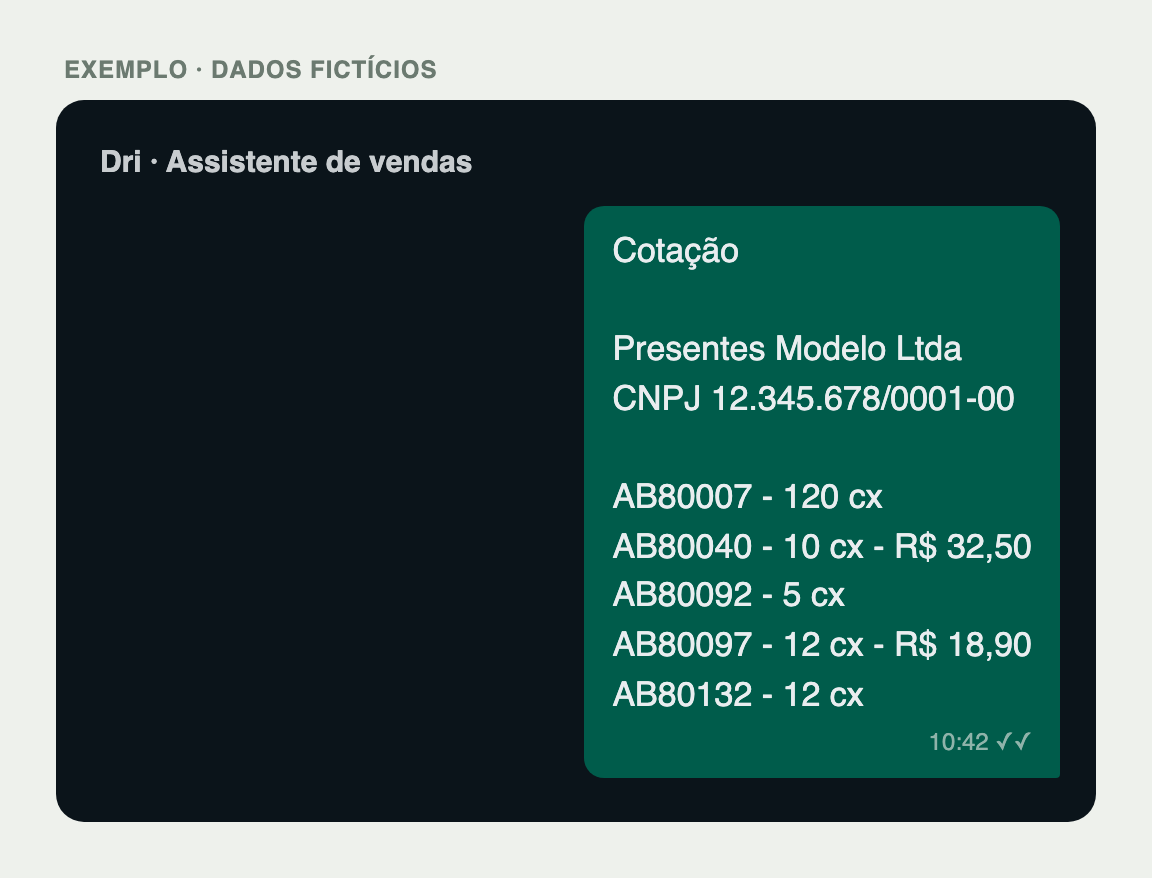
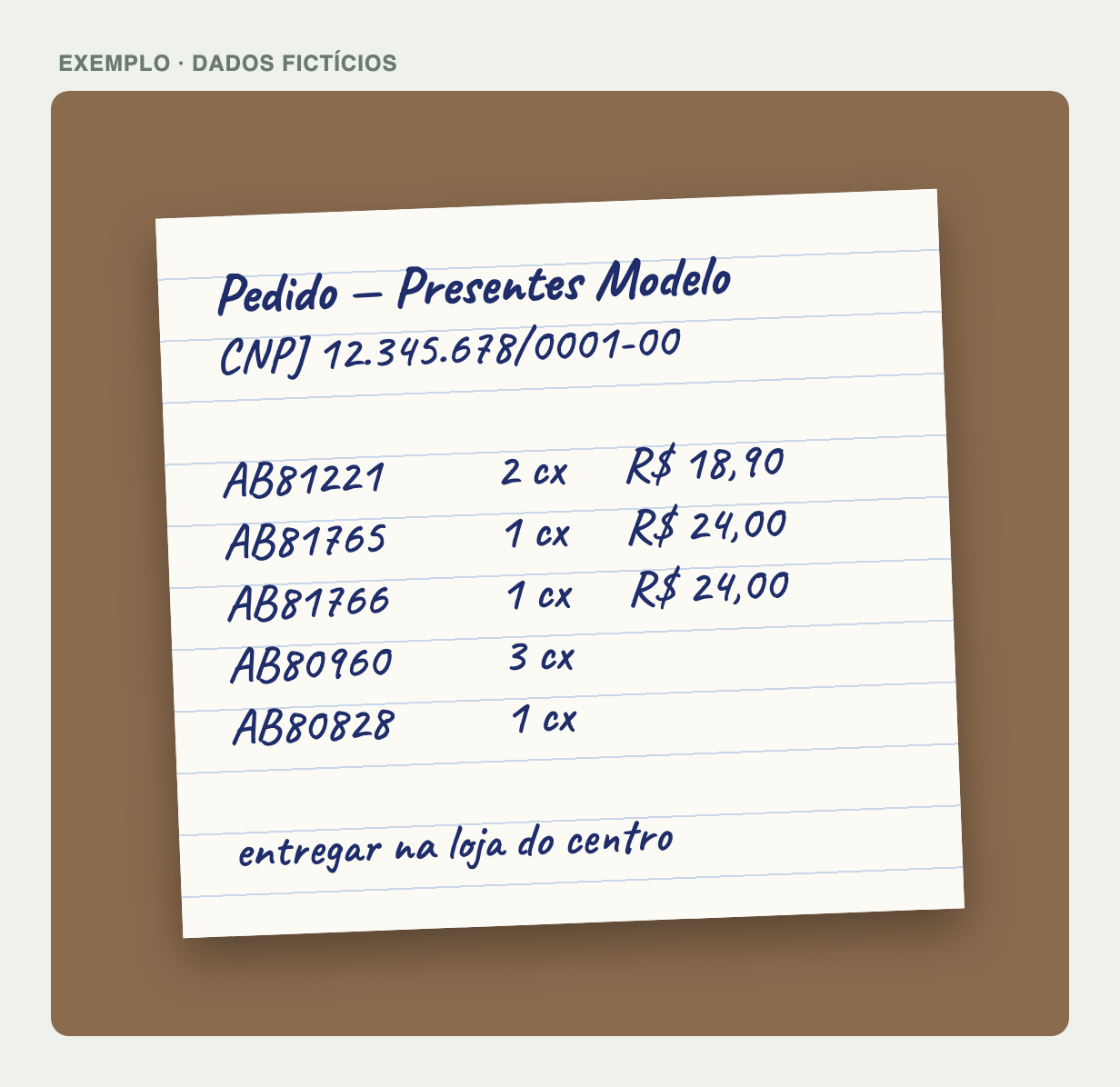
Photo of the order
A printed or handwritten order works. Take the photo head-on, with good light and the whole sheet in the frame, with the codes legible.
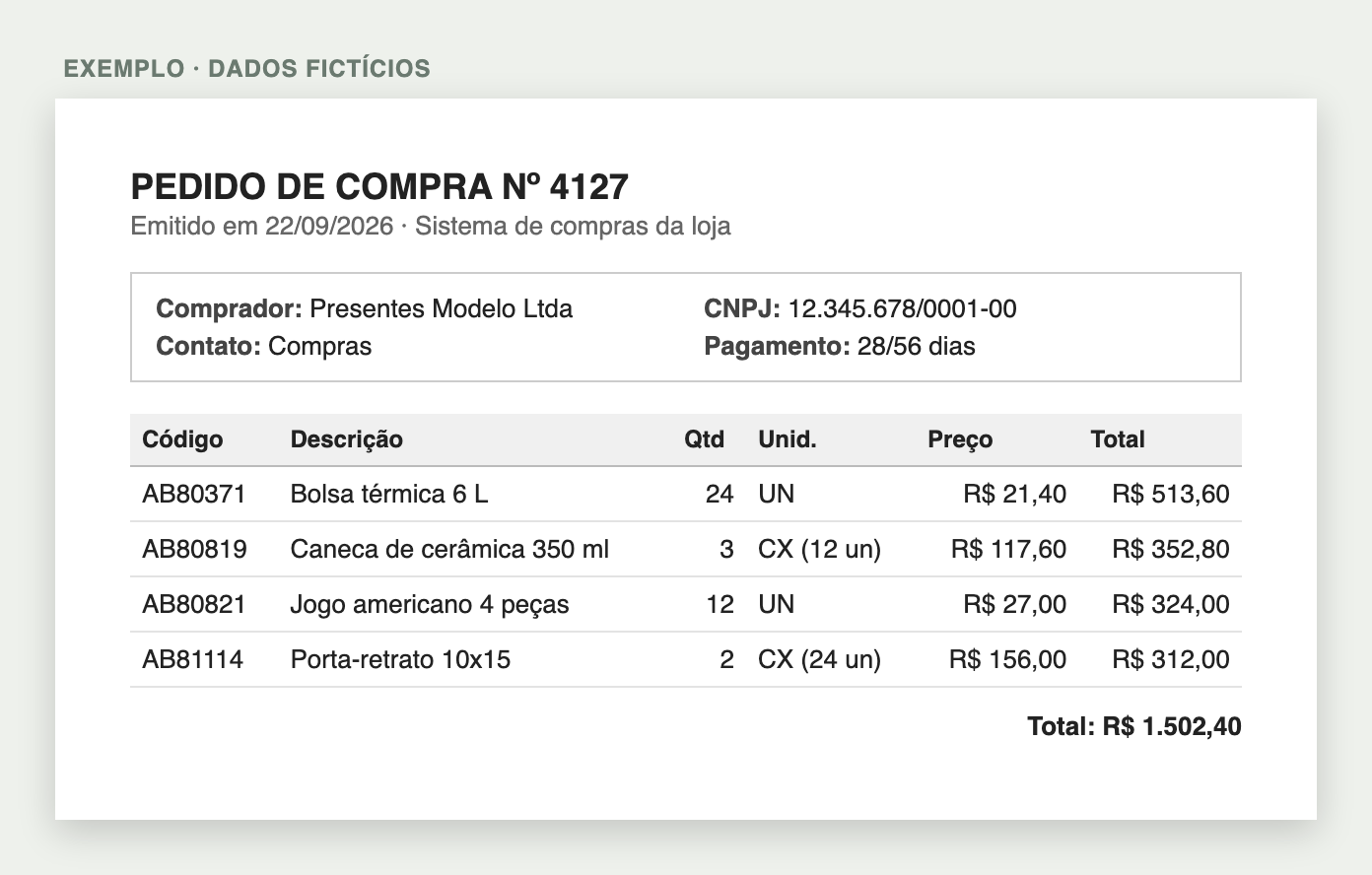
PDF from the customer's system
The purchase order the customer's system generates usually comes complete: CNPJ in the header, code, quantity, unit and price in columns. Check that the unit column is there: a PDF with "Qty 3" and nothing next to it leaves Dri guessing whether it's 3 pieces or 3 boxes. If it's complete, just forward the file.
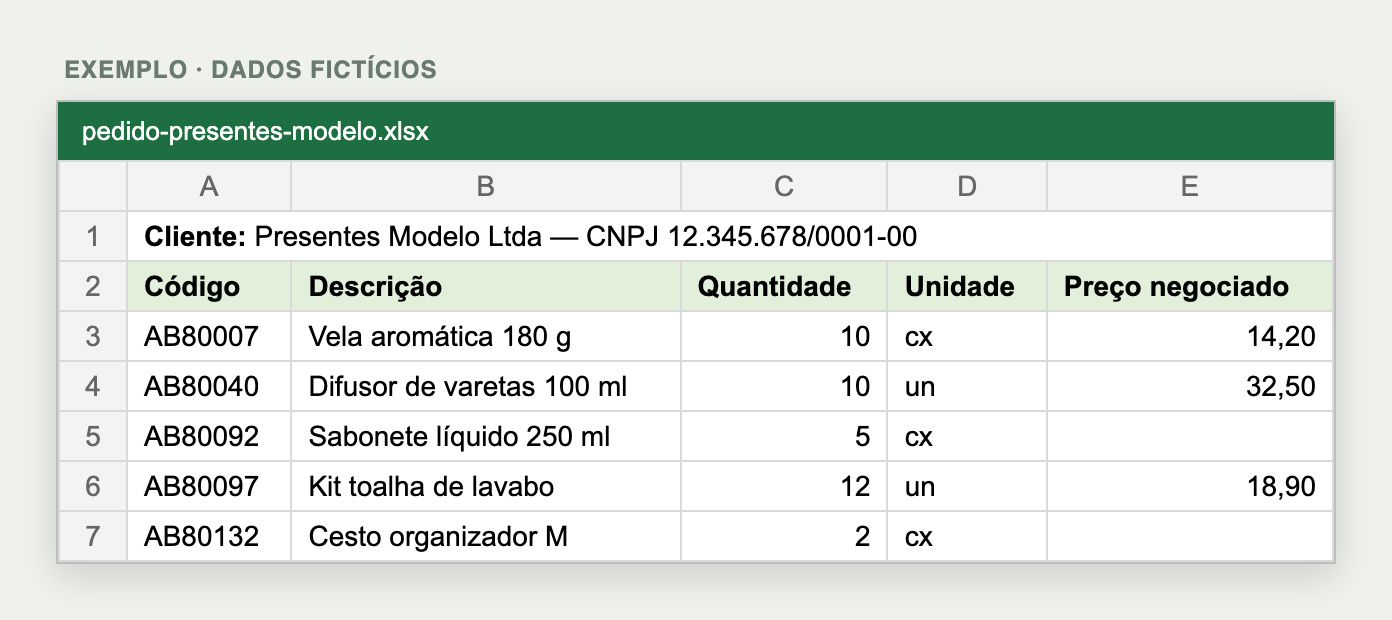
Spreadsheet
One header row, one row per item and a column for the unit, which can be different on each row. The customer can go on a row above the table.
What gets in the way of reading
Almost every item left unmatched falls into one of these cases:
- The customer's code instead of the catalog code. Many stores have their own numbering or internal barcode. Dri searches the supplier's catalog, and the customer's code isn't there.
- Code without the leading letters. 10008 may be several products; AB10008 is just one.
- Quantity without a unit. "AB10008 10" becomes 10 in the default unit set by the supplier. If the customer meant the other one, the quote comes out with the wrong quantity, and nothing in it looks wrong.
- Only the description. "Guest towel" has dozens of options in the catalog. Without a code, Dri picks the most likely one and asks you to confirm.
- Spreadsheet with rows that aren't items. A repeated header, subtotal, tax, freight or a note in the middle of the table may be read as a product. Leave only the item table, with one header.
- Measurement columns that look like codes. In a photo of a table, a column of sizes (20x30, 50x70) may be read as a code. Keep the code in a column of its own.
- An order for another supplier or another store. If the codes belong to one of the supplier's stores your customer doesn't buy from, Dri says so instead of putting together the quote.
After you send the order: it hasn't been sent yet
For the buyer, the order you send to Dri (text, photo, PDF or spreadsheet) becomes a quote in Quotes, with the Draft tag, and it hasn't been sent to the supplier yet. Dri looks up each item in the catalog, applies your terms and replies with what she found, what was left unmatched and the link that opens the quote on the site. When your company has an assigned seller, they get a notice that the quote arrived, but it stays a draft.
To send the order formally for approval:
- Open the link in the message, or the order in Quotes.
- Check items, quantities and prices.
- Click Send for Approval. The tag changes to Waiting: the order is with the seller, who checks it and replies.
The message's buttons, Export and Add items, don't send the order to the seller: one generates the quote file and the other adds items to it. See Order sent: what happens now for what comes after sending.
For those who sell, the quote is also saved in Quotes as a draft, and nothing goes to the ERP at that moment. You can review and confirm it right there, or leave it for someone else on the team to review on the computer first. See Confirmar o orçamento: direto ou depois que o cliente aceitou.
If the company buys from more than one of the supplier's stores, Dri splits the items by store and, when she can't tell which store the order is for, she asks.
Change the quote through the conversation
With the quote open in the conversation, you can adjust it by writing, without starting over:
- "what's in the order?" or "show me the items": Dri lists the items;
- "add 3 box of AB10092": adds the item to the quote;
- "remove AB10040": removes the item;
- "change AB10007 to 20 box": changes the quantity of an item that is already there. Say the unit, and Dri converts boxes into pieces using the product's registration;
- "undo": removes the items from the last message you added to a quote that was already open. The creation of the quote can't be undone: right after the quote comes out, fix it item by item or on the screen.
Use the product's full code, as it appears on the quote: Dri finds the item by its code. Send one change per message. Make the adjustments before clicking Send for Approval: after sending, the seller is the one who changes the order. For those who sell, the full list is in Montar uma cotação por texto no WhatsApp.
Where each piece of information appears on the site
The screenshots below are from the quote the Summary message generated, with fictitious data. The numbers mark where each part of the message ended up.
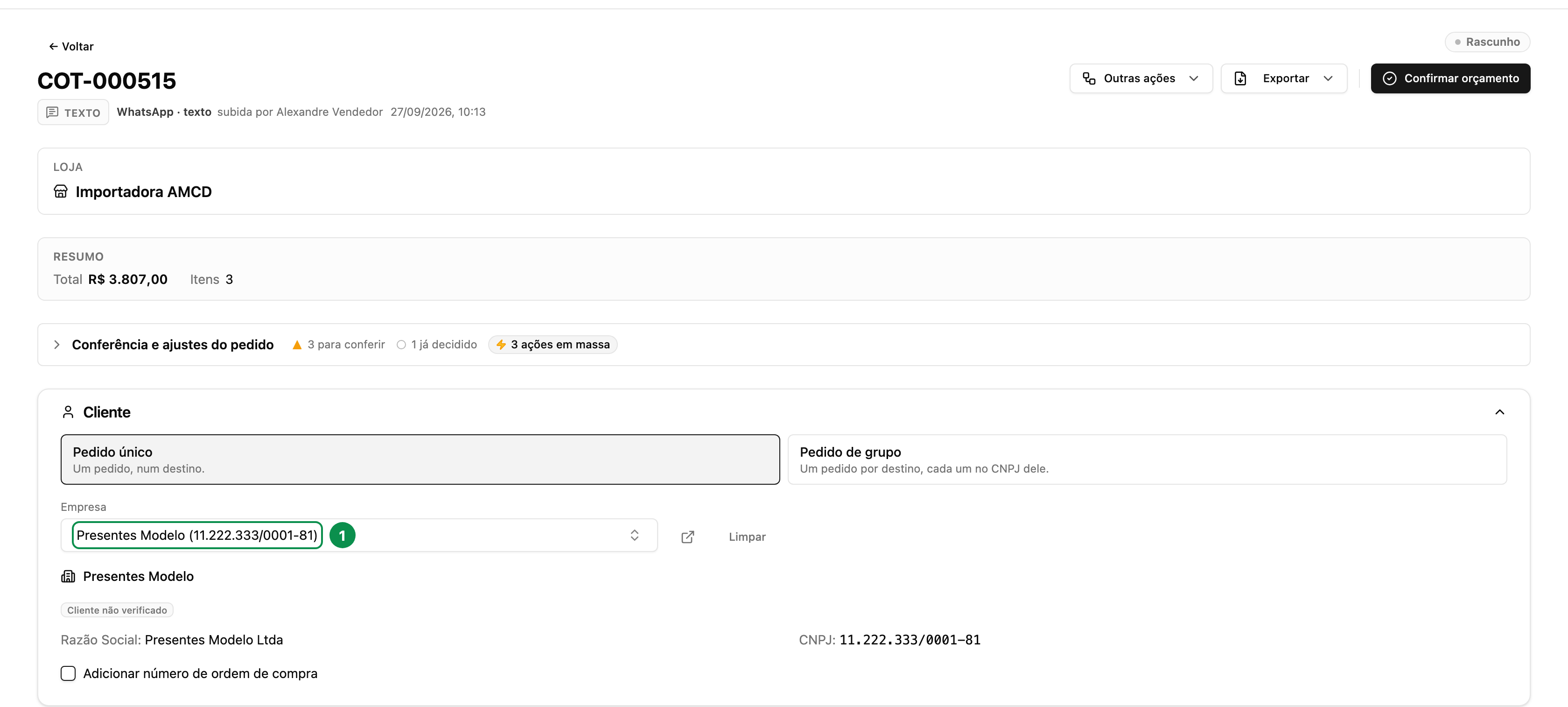
1. The customer. The name or CNPJ at the start of the message becomes the quote's customer, in the Company field of the Customer panel. With the CNPJ Dri finds the right registration. When she doesn't recognize the customer, the panel shows Customer not identified and you choose the company right there.
To see the items as in the screenshot below, click Detail price and discounts, right above the table.
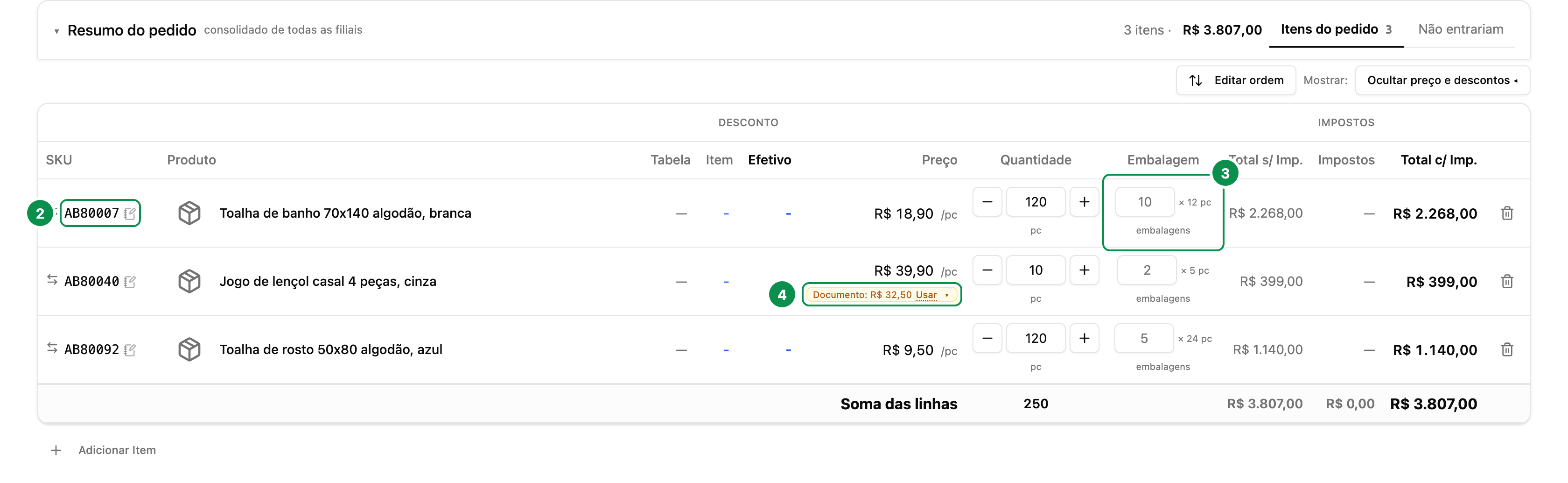
2. The code. Each line of the message becomes a row in the table, with the code and the catalog product. A code Dri didn't find appears marked as Code not found, for you to swap the product or search again.
3. The quantity and the packaging. The Quantity column always shows the total in pieces, and the Packaging column shows how many boxes that makes and how many pieces come in each. In the example, 10 box of the bath towel became 120 pieces in 10 packages of 12; 10 un of the bed sheet stayed at 10 pieces, which are 2 packages of 5. That's why the unit in the message matters: without it, "10" could be 10 pieces or 10 boxes.
4. The agreed price. The price in the message doesn't replace the line's price on its own. It appears below the list price, as Negotiated: R$ 32,50 · Use, waiting for you to decide.
The agreed price
This part is for those who sell. The price the buyer writes in the order is never applied on its own: it is noted on the quote, and the seller decides.
You apply the message's price in two ways, and choose in each whether it is the base price or the fixed price.

- Line by line: click Use on the tag, or on the small arrow next to it to choose how.
- All lines at once: open Order review and adjustments, at the top of the quote, and in Prices and discounts set Item prices to negotiated and choose Negotiated as base or Negotiated as final price. List price takes the lines back to the list price.
The difference between the two:
- Base price replaces the list price with the agreed price, and the discounts still apply on top of it. If you're still going to give an additional discount on that item, use this one.
- Fixed price is the line's final price: the discounts stop at it.
When in doubt, use base price. The agreed price respects the store's discount limit: a line whose price would require a discount above the limit keeps the list price, and the notice says how many lines were left out and why.
The administrator can make the quote be born with the message's price already applied: in Prices, Discounts and limits tab, in the Document price panel, the Apply automatically option, choosing there whether it goes in as the fixed price or as the base price. Then the line shows the ✓ Negotiated badge, with the undo option.
Boxes and pieces in the review
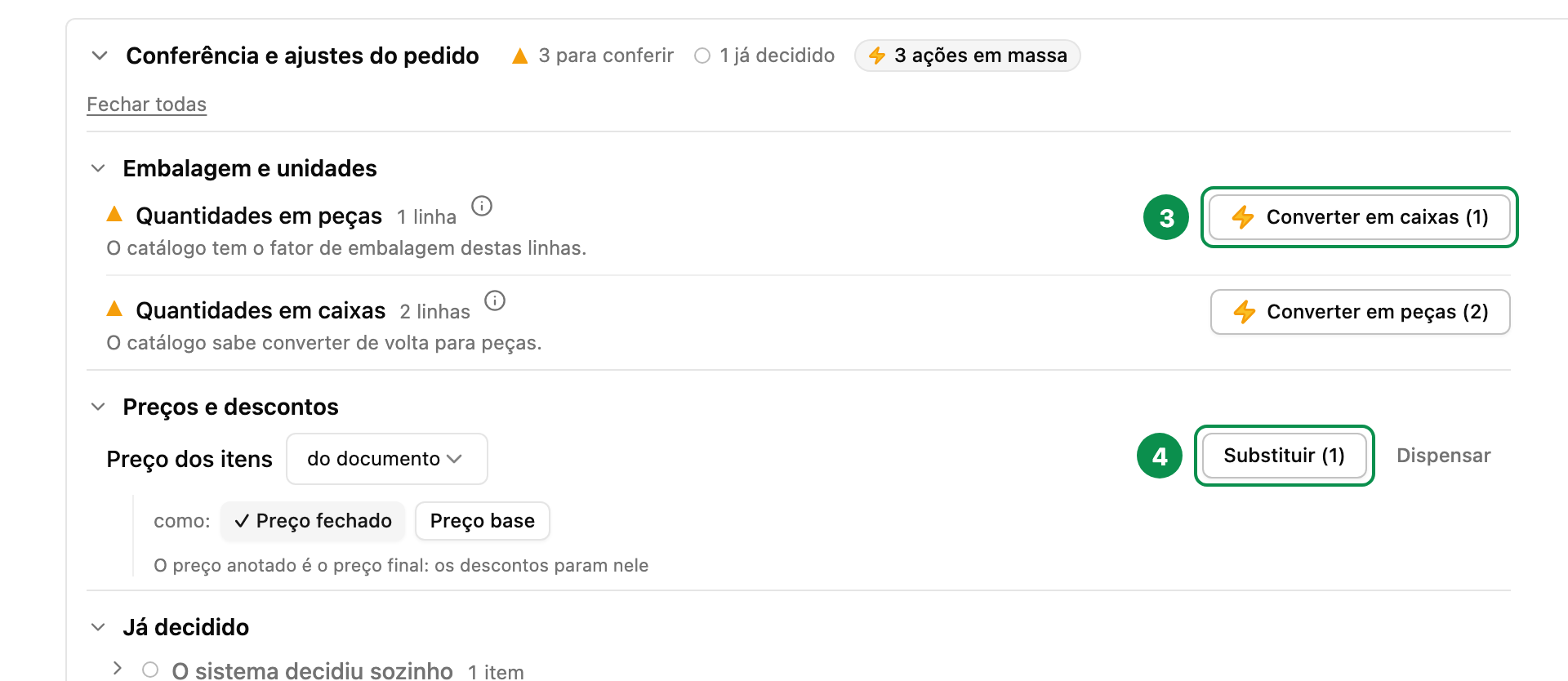
The Order review and adjustments panel brings together what can be settled at once. Under Packaging and units, it separates the lines ordered in pieces from those ordered in boxes, whenever the catalog knows how many pieces come in the box:
- Convert to boxes turns the lines ordered in pieces into boxes;
- Convert to pieces does the reverse.
Use it when the customer ordered everything in one unit and the message came out mixed, or when the line stayed in the company's default unit and the customer meant the other.
The Export and Add items buttons
After the quote is put together, Dri's message comes with two buttons.
Export: Dri asks "Which format?" and offers Excel and PDF. Once you pick the format, the quote file arrives right there in the conversation. With the file delivered, that conversation ends; the next message starts a new one.
Add items: Dri replies that you can send the items by photo, document or text, and whatever you send next goes straight into the same quote, without her asking whether it's a new order.
The link in the message opens the quote on the site, where you review quantities, terms and notes before sending. Neither button sends the order to the seller: the buyer sends it with the Send for Approval button, on the quote's page.
New order, start over and end the conversation with Dri
"new order" or "new quote": the quote that was open stays saved, and Dri confirms its number before asking for the items of the next order. The conversation continues.
"start over", "clear everything" or "reset": Dri doesn't decide on her own: she asks. With a quote open, the options are New order, Continue (with the quote number) and End everything.
"bye", "see you" or "end": ends the conversation. A "thanks", "ok" or "great" on its own doesn't end it: Dri takes it as confirmation and asks whether you need anything else.
Ending the conversation doesn't delete any quote. What was put together stays in Quotes.
Don't know where to start? Write help and Dri explains what you can do there.
What Dri does for the buyer
Dri does four things for those who buy through WhatsApp:
- checks price and stock of a product: see Check price and stock with Dri;
- puts together the quote from text, photo, PDF or spreadsheet;
- adjusts the open quote in the conversation: lists, adds, removes and changes quantity;
- delivers the quote file, in Excel or PDF, through the Export button.
She also starts over and ends the conversation when you ask, and tells you the status of an order from your company when you send just status and the order number, like status 412.
What Dri doesn't do for the buyer
Some things Dri does for the supplier's team don't exist in the conversation with the customer. If you ask, she replies that she only helps with catalog, prices and orders.
- A list or catalog as a file: she doesn't generate a spreadsheet or a PDF of the catalog, whole or by brand. To see everything, use the Catalog on the site.
- Order by filter: "I want all the products in line X" doesn't become an automatic quote. Say which products and quantities you want.
- The supplier's sales matters: customer portfolio, sales, targets and customer registration belong to the sales team.
- A spreadsheet in the supplier's internal template: the file you get is the one from the Export button, in Excel or PDF.
- Email: she doesn't send email or forward messages to anyone. To send the quote to someone, tap Export, choose PDF and forward the file that arrives in the conversation.
- Negotiation and an order already sent: asking for another price or payment terms, or changing an order after Send for Approval, is up to your seller.
To follow what has already been sent, use the site or send Dri status and the order number. See Where I see my orders.
When it goes wrong
"No active access": the number you wrote from isn't linked to an active account. Check that it's the registered phone number; if it is, talk to whoever registered you with the supplier.
"You are not associated with any company": your account exists, but your company doesn't have any of the supplier's stores released yet. The supplier is the one who resolves it.
"This order seems to be for the store …, which your company doesn't have access to": the codes you sent belong to one of the supplier's stores that isn't released to your company, and the quote wasn't created. If you need to buy from there, ask your seller for access.
Common questions
I sent the order through Dri. Has it gone to the seller? Not yet as a sent order. It's in Quotes with the Draft tag. The seller responsible for your company gets a notice that the quote arrived, but the formal sending is yours: open the quote and click Send for Approval.
I placed the order, but it shows as Draft. What's missing? Sending it. Open the order in Quotes and click Send for Approval; the tag changes to Waiting, and from then on the order is with the seller.
Is the one answering on WhatsApp a person or an artificial intelligence? It's Dri, an artificial intelligence assistant. To negotiate or talk to a person, reach out to your seller.
Does Dri send the quote by email? No. Tap Export, choose PDF and forward the file to whoever needs it.
Can I change the quantity after the quote came out? Yes, through the conversation, as long as it hasn't been sent: write, for example, "change AB10007 to 20 box". After Send for Approval, ask the seller for the change.
What's the maximum number of items in an order? 1.000 items. Above that, split the order into smaller files.